

Automation
Workflows
Create, test, and manage workflows with triggers, plain-language steps, and @-mentions.
Create and manage a workflow
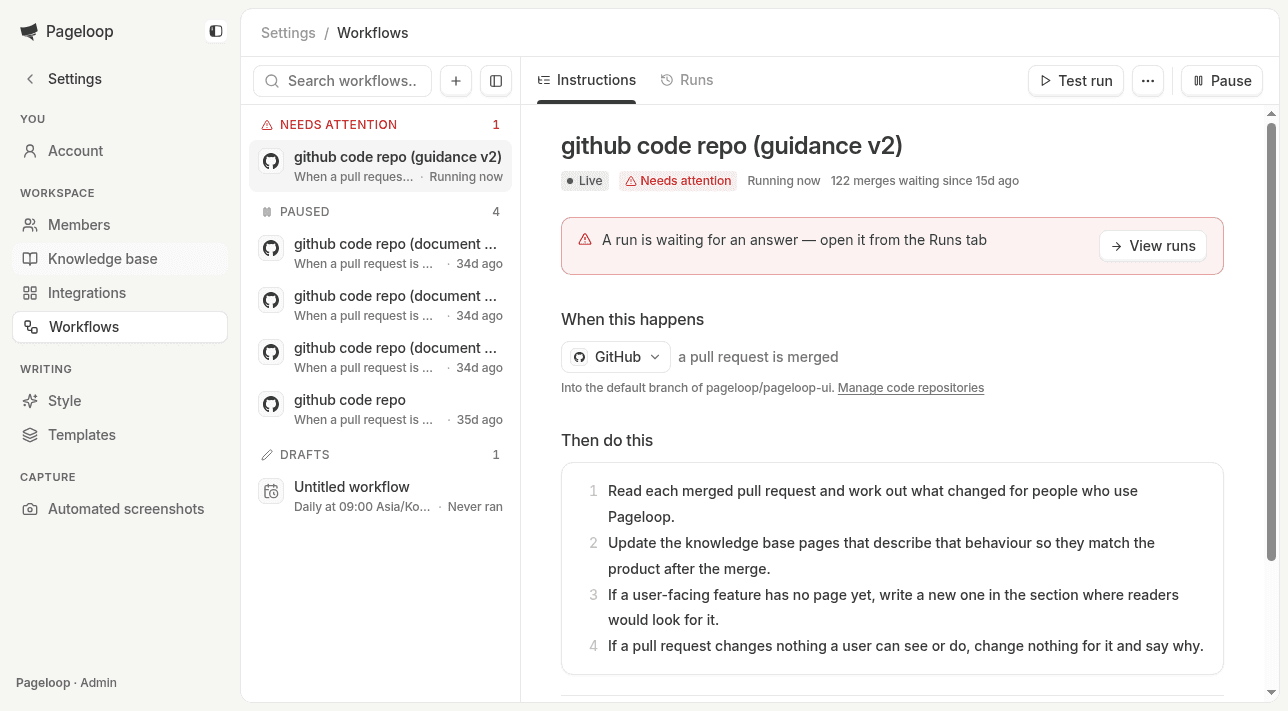
Workflows are saved automations that tell Pageloop when to run and what to do. Use a workflow for documentation work you want to repeat, such as checking product changes and drafting updates to the pages those changes affect.
Each workflow has two parts:
- When this happens — the trigger that starts the work.
- Then do this — steps you write in plain language to describe the job. You do not need to write code.
Before you begin
Admins and Editors can create and manage workflows. Contributors cannot see Workflows in the sidebar; Contributors review the Inbox items assigned to them instead.
Use a workspace with a knowledge base hosted by Pageloop. Connect and configure any source you want Pageloop to read in Integrations before using that source in a workflow. For GitHub, connect the product's code repositories. For GitLab, choose the product projects and configure the labels Pageloop can read.
Create a workflow
- Select Workflows in the main sidebar. The link opens Settings, where Workflows lives under Workspace. You can also open the Account menu, select Settings, and choose Workflows.
- Select New workflow (the + button above the workflow list), or open an existing draft to finish configuring it.
- Give the workflow a name that describes the job.
- On the Instructions tab, choose a trigger under When this happens.
- Under Then do this, write what Pageloop should check and what result you want. Press Shift+Enter to start another step. Enter adds a line within the same step.
- Wait for Saved before leaving. The trigger and steps save automatically after you stop editing or leave the field. The name saves when you leave the name field or press Enter. There is no separate Save button.
- Select Activate when the trigger and steps are complete. The status changes from Draft to Live. If Pageloop shows a validation message or Not saved, resolve the problem before activating.
Saving a draft does not activate it. You can test a workflow before making it live.
Choose a trigger
| Trigger | What to configure | When it runs |
|---|---|---|
| On a schedule | Choose Every day, Every weekday, Every week, or Every month, then set the time and time zone. Weekly schedules also need a day of the week. Monthly schedules offer the 1st, the 15th, or the last day. | At the selected time in the selected time zone. |
| GitHub — a pull request is merged | Set up the code repositories in Integrations. The workflow shows the repositories it watches. | When a pull request merges into a connected code repository's default branch. |
| GitLab — a merge request is merged | Choose the product projects in Integrations. The workflow shows the projects it watches. | When a merge request merges into a chosen product project's default branch. |
| Pageloop — an article is published | Choose the published event. | When documentation is published, with the changed pages as context for the steps. |
| Pageloop — an article goes stale | Choose 30, 60, or 90 days, plus the daily check time and time zone. | When the daily check finds published pages that have not been updated for longer than the selected age. |
An app marked Not connected needs setup in Integrations first. For schedules that read an integrated source, choose the source you want to check. Jira, Slack, and Linear also appear as trigger choices that are checked on a schedule, rather than on individual events.
Scheduled workflows schedule agent runs, not publication. A schedule determines when Pageloop checks sources and carries out your steps; it does not set a time for documentation to go live.
Write clear steps
Describe the task as you would explain it to a teammate:
- Start each step with an action, such as “Read,” “Compare,” or “Draft.”
- Name the source and scope: which product, pages, projects, or channels matter.
- Explain what counts as relevant and what to skip, such as internal refactoring or changes that have not shipped.
- State the result you want: updated pages, a new article when no page covers the topic, or a summary in a specific Slack channel.
- Say what to do when there is nothing to change. For example, “Leave accurate pages unchanged and explain why.”
Use @-mentions in steps
Type @ in Then do this, then type to search and select a suggestion. Choosing a suggestion inserts a reference; typing a name as ordinary text is not the same as selecting a mention.
The picker groups references into four categories:
| Category | What you can mention | What it gives the agent |
|---|---|---|
| Tools | Jira, Slack, Linear, GitHub, GitLab, Intercom, and Inbox. | An explicit reference to the service or destination you mean. A tool mention does not connect an integration or grant access on its own. |
| Pages | Knowledge base pages offered by the picker. | The specific page's path, so the agent can find the page you want it to read or update. |
| Slack channels | Tracked channels and the notification channel configured in Integrations. | The channel's identity and, when available, its name. Use a channel mention to identify where to read or post; live runs can post only to allowed channels mentioned in their steps. |
| People | Active workspace members. | The member's name as context for the instruction. A person mention is not, by itself, an assignment or notification. |
Put the action around the mention: “Compare @Getting started with the merged changes” is clearer than a step containing only “@Getting started.” For Slack, say whether the agent should read the channel or post a summary there. For People, explain the person's role in the task rather than assuming the mention tells the agent what to do.
If a referenced page, channel, or person is no longer available, replace the mention with a valid selection. Mentions identify the target; your plain-language steps still define the job.
Example: document merged product changes
This example checks merged GitHub pull requests and drafts documentation updates for review.
-
Create a workflow named Document merged product changes.
-
Under When this happens, select GitHub. Confirm that the line beneath the trigger lists the code repositories you intend to watch.
-
Under Then do this, enter these steps, using Shift+Enter between steps:
Read each merged pull request and identify changes customers can see or use.
Find the knowledge base pages that describe the affected behavior. Update those pages to match the product. If no page covers a distinct feature, draft a page in the appropriate section.
Skip refactors, dependency updates, tests, and internal tooling. Leave accurate pages unchanged and explain why.
Prepare the documentation changes for review in @Inbox and cite the pull requests that support each change.
In the last step, type @ and select Inbox from Tools rather than leaving
@Inboxas plain text. -
Wait for Saved, then select Test run. Review the result in Runs and refine the steps if needed.
-
Select Activate. If merges are already waiting, choose whether to run or skip the backlog.
The live workflow checks subsequent merges and sends proposed documentation changes to the Inbox. A person reviews the drafts and decides what to publish. If the changes do not need documentation, the run can finish without proposing an update.
Example: review completed work on a schedule
Use a weekly schedule with Linear as the source. Write steps asking Pageloop to review completed issues since the last run, identify which changes affect your documentation, and draft updates with references to the issues.
This gives you a recurring review of shipped work rather than relying on someone to remember to check it.
Runs are not publication
Scheduled Workflows schedule agent runs, not publication. The schedule determines when Pageloop checks the source and carries out your steps. It does not set a time for documentation to go live.
Nothing is published automatically. Drafts go to the Inbox for human review. Your team checks the proposed changes and decides what to publish. If the research finds nothing that needs a documentation change, a run can finish without producing an update.
Manage a workflow
Select a workflow from the list to reopen it. The list groups workflows under Needs attention, Live, Paused, and Drafts. Use Search workflows to find a workflow by name or trigger.
Review runs and history
Open the Runs tab to see run history, newest first. Each row shows the status, the workflow version used, and when the run happened. Test runs have a Test badge.
Select a run to expand its details and activity. Runs can be Queued, Running, Succeeded, Needs review, Failed, or Skipped. For failed or skipped runs, read the reason before deciding what to change. Use Load more when available to view older runs.
Select Open in Inbox to review proposed documentation changes. If the run produced a Slack post, Open in Slack takes you to the message instead.
Test a workflow
With a valid trigger and at least one step saved, select Test run, then open Runs to follow the result. You can test a draft without activating it. Only one test for the workflow can be queued or running at a time.
What the test checks depends on the trigger:
| Trigger | Test input |
|---|---|
| Schedule | Activity from the last 24 hours. |
| GitHub merged pull request or GitLab merged merge request | Up to three recent merges from the last seven days. The test does not consume the live merge backlog. |
| Pageloop stale article | Pages that meet the configured stale age at the time of the test. If none qualify, the test is skipped. |
| Pageloop published article | This trigger cannot be tested by replaying a publication. It needs an actual article publication to run. |
A test can produce a change set for review, but it does not publish documentation or send Slack posts. If the steps request a Slack post, the agent includes the proposed message in its summary instead. Tests do not advance the live workflow's progress through source activity.
Pause, activate, and edit
Select Pause on a live workflow to stop future automatic runs. Pausing does not cancel a run already in progress. Select Activate on a paused workflow to make it live again.
To change the job, edit the trigger or steps on Instructions and wait for Saved. An in-progress run keeps using the version it started with; your edits apply from the next run.
Duplicate a workflow
Open More actions (the … button) and select Duplicate. Pageloop opens a draft named after the original with (copy) appended. The copy has the same trigger and steps, but no run history. Rename it, adjust the instructions, and activate it separately when ready.
Handle the backlog dialog
When you activate a merge-triggered workflow with waiting or failed merges, Pageloop opens Merges are waiting for this workflow. The dialog shows how many merges are waiting and, when available, the oldest merge date. It also identifies merges that could not be documented after three tries.
Choose one of the following:
- Run them — activate the workflow and process the held merges once it is live.
- Skip them — activate the workflow for new merges only, without processing the held merges.
- Cancel — close the dialog without activating the workflow.
For merges that failed after three tries, the workflow can also show Run them again and Let them go. Use those controls to retry or skip the failed merges.
For a tour of the other places you work, see The Pageloop sidebar.