

Integrations
Choose what your AI tool can do
Choose knowledge bases and permissions for an AI tool, within your Pageloop role.
Choose what your AI tool can do
Choose the access your AI tool needs for the task, rather than giving it permission to do everything. You make this choice in your browser when you connect the tool.
Choose knowledge bases
Select a Workspace, then tick the Knowledge bases the tool should use. The list contains eligible Pageloop-hosted docs sites, not connected help centers. Tick at least one knowledge base.
The connection can access only the knowledge bases you select. Workspace permissions, such as managing the team or workflows, act on the workspace you chose.
Choose an access level
| Level | Description on the screen | When to use it |
|---|---|---|
| Read only | “Looks things up. Changes nothing.” | Find pages, search documentation, and read suggestions without making changes. This is the starting selection. |
| Propose changes — Recommended | “Drafts and reviews proposals. You publish them in Pageloop.” | Prepare documentation drafts and review proposals without letting the tool publish live. |
| Full access | “Everything above, plus publishing live from [tool].” | Give the tool all the access your role allows, including publishing for Admins and Editors. The screen names your tool in place of [tool]. |
| Custom | “Pick exactly which permissions.” | Select individual permissions for a specific task. |
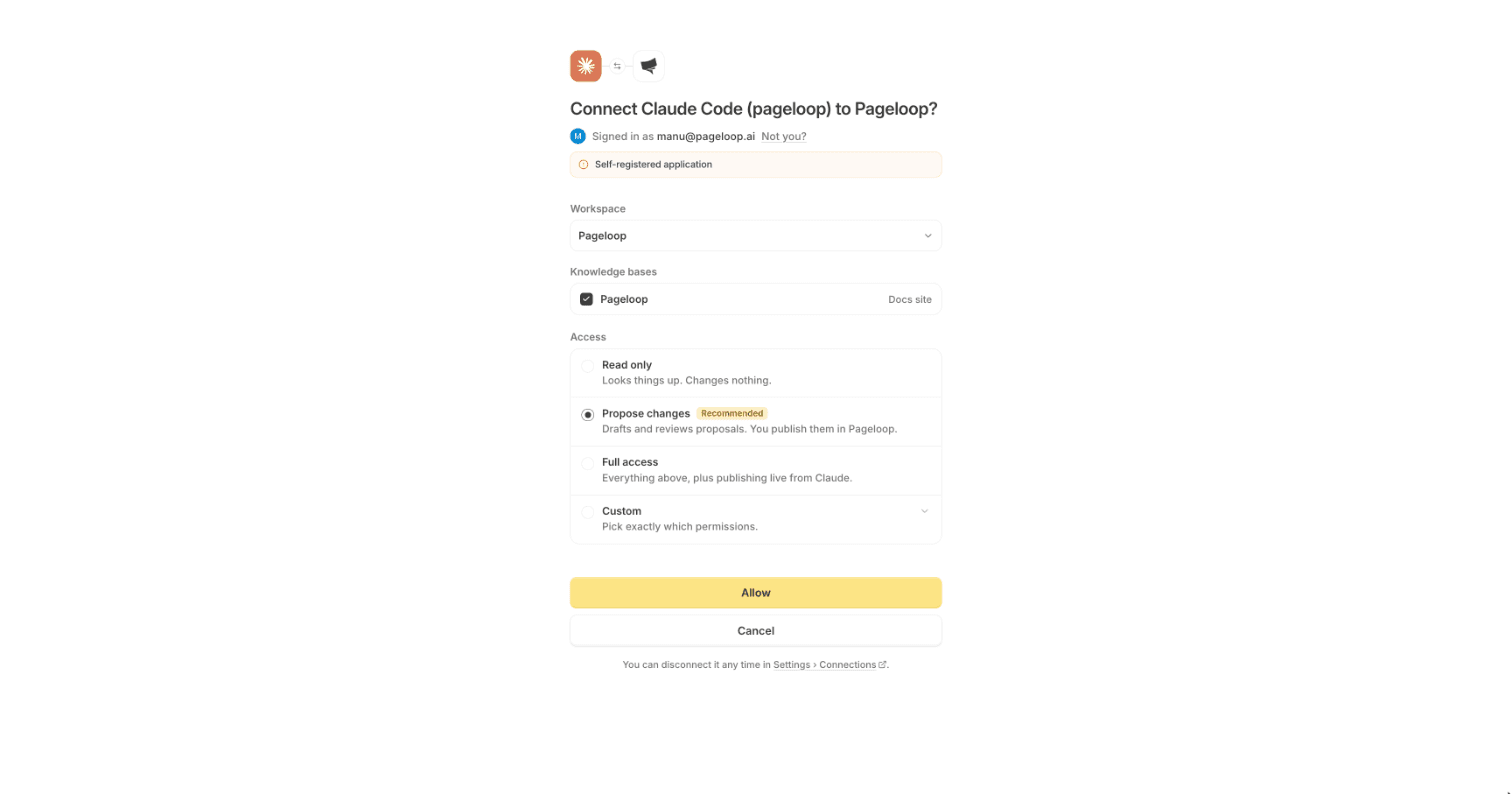
For Admins and Editors, Full access allows the tool to publish to live documentation in the knowledge bases you picked, without a person approving each change, until you disconnect it. The same warning appears if you select Publish live under Custom. Choose Propose changes if you want to publish the work yourself in Pageloop.
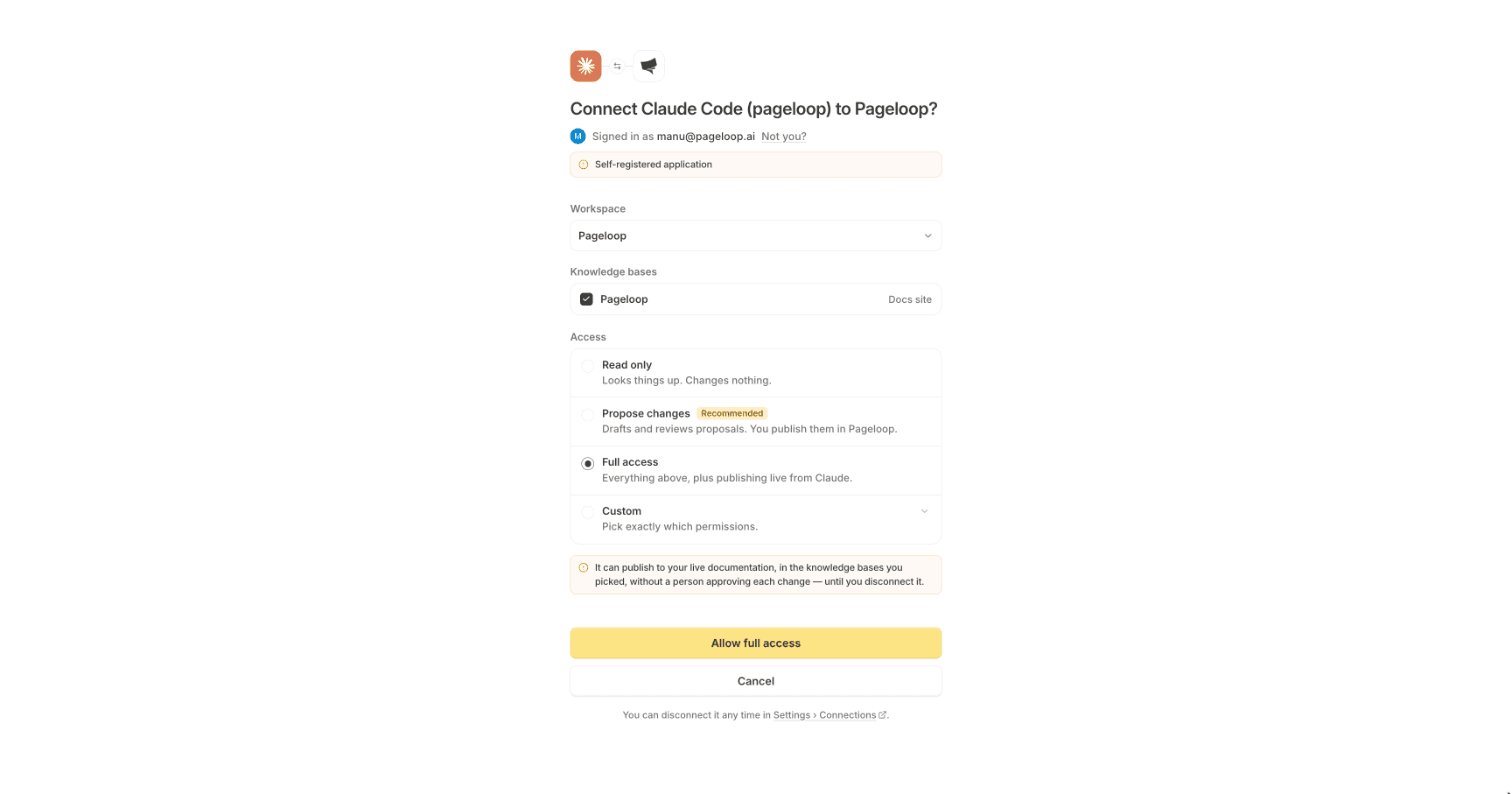
The screen shows only permissions your role can grant. A Contributor's Full access adds workspace reading permissions, not publishing; its description reflects that difference.
Pick Custom permissions
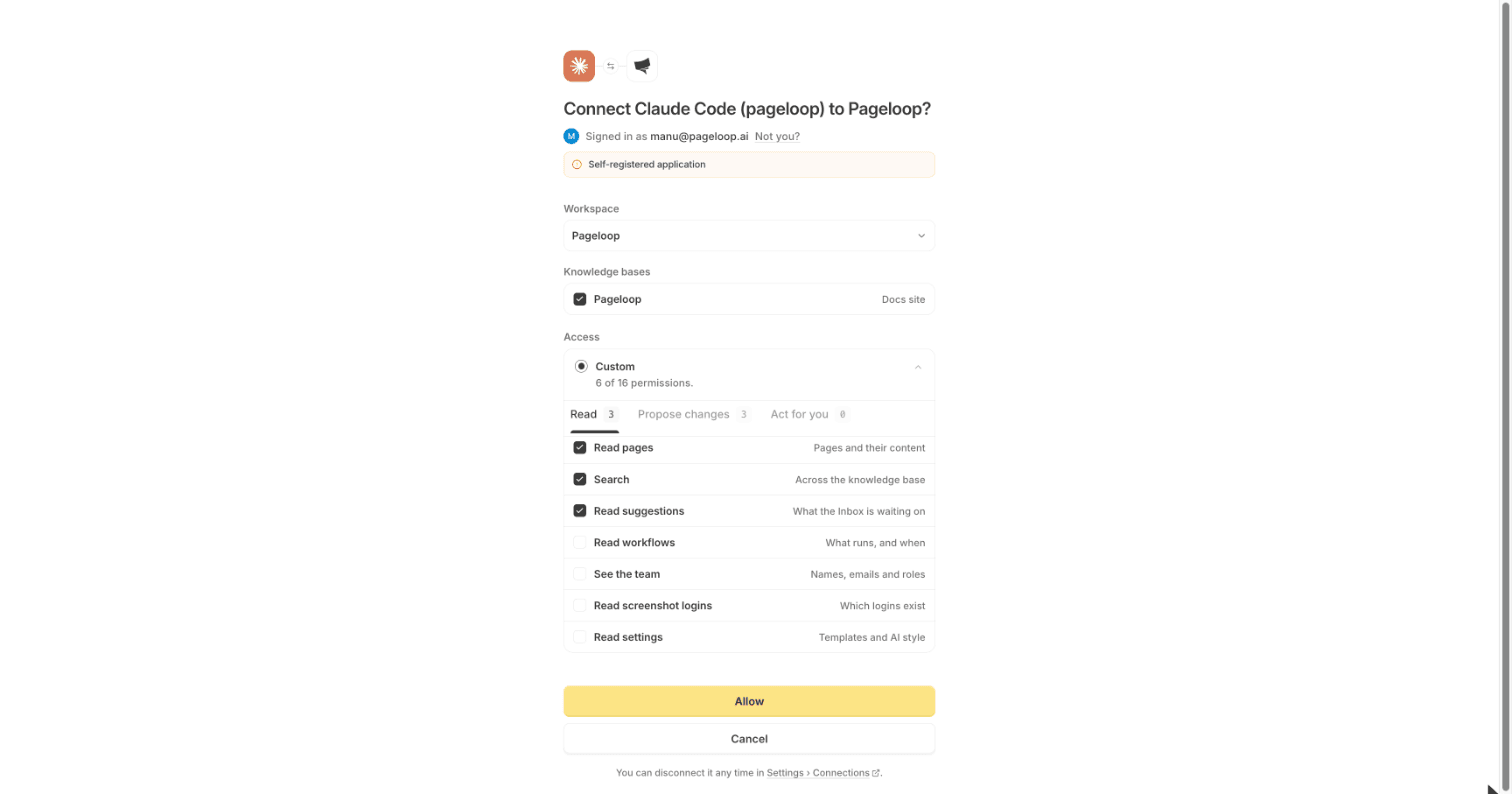
Custom has 16 permissions across three tabs: Read (7), Propose changes (3), and Act for you (6). Your role may make fewer available. The descriptions below match the short descriptions beside the checkboxes.
Read
| Permission | Description on the screen |
|---|---|
| Read pages | Pages and their content |
| Search | Across the knowledge base |
| Read suggestions | What the Inbox is waiting on |
| Read workflows | What runs, and when |
| See the team | Names, emails and roles |
| Read screenshot logins | Which logins exist |
| Read settings | Templates and AI style |
Propose changes
| Permission | Description on the screen |
|---|---|
| Draft changes | Edits into a change set |
| Submit for review | Hand a change set to a reviewer |
| Review proposals | Approve or send back |
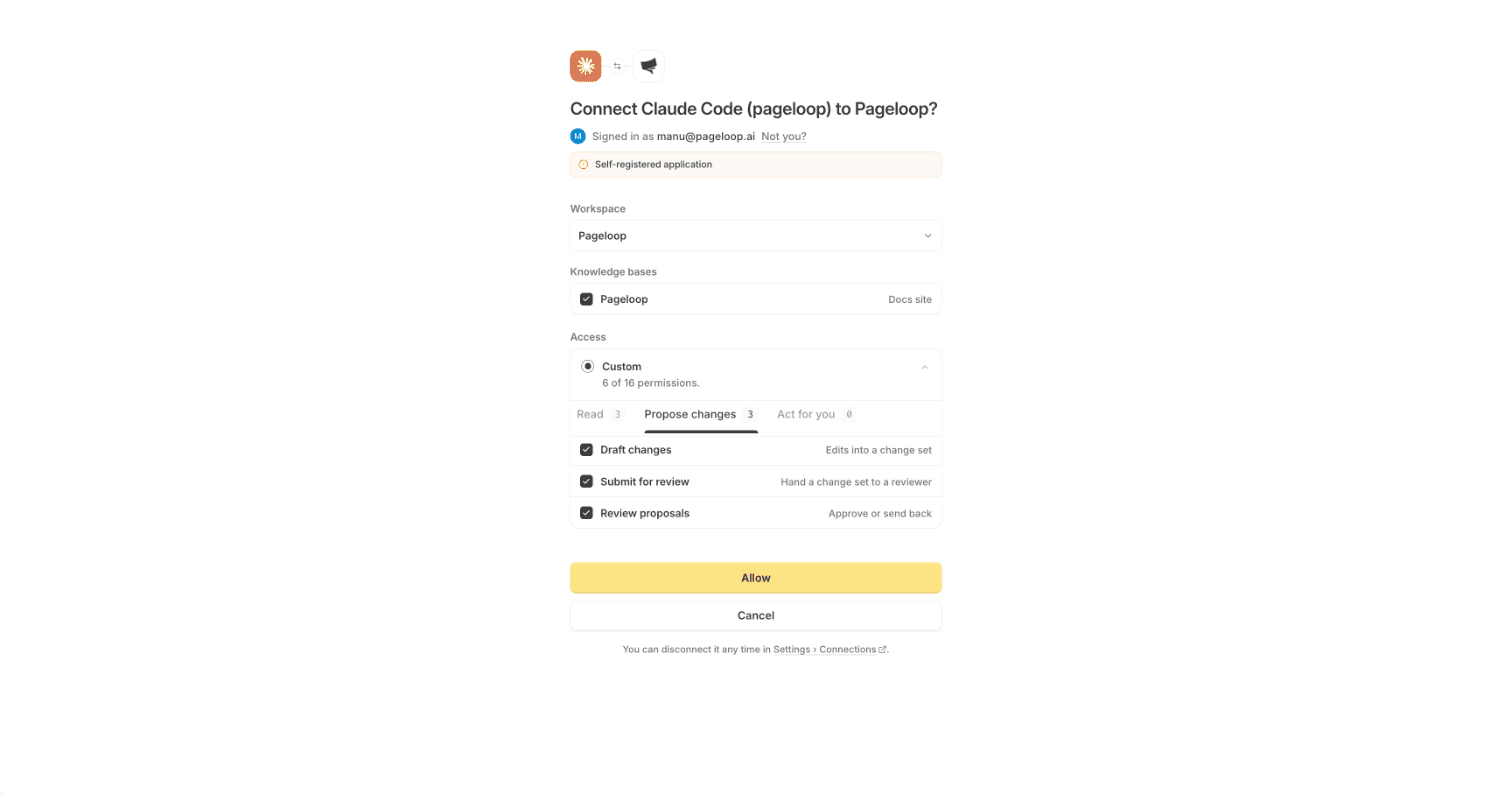
Drafting, submitting for review, and publishing are separate permissions. Submitting a change set does not publish it live.
Act for you
| Permission | Description on the screen |
|---|---|
| Run the docs agent | Start an agent run |
| Manage workflows | Create, edit and pause |
| Manage the team | Invite and change roles |
| Manage screenshot logins | Test, switch on or off |
| Change settings | Templates and AI style |
| Publish live | Goes live with no approval step |
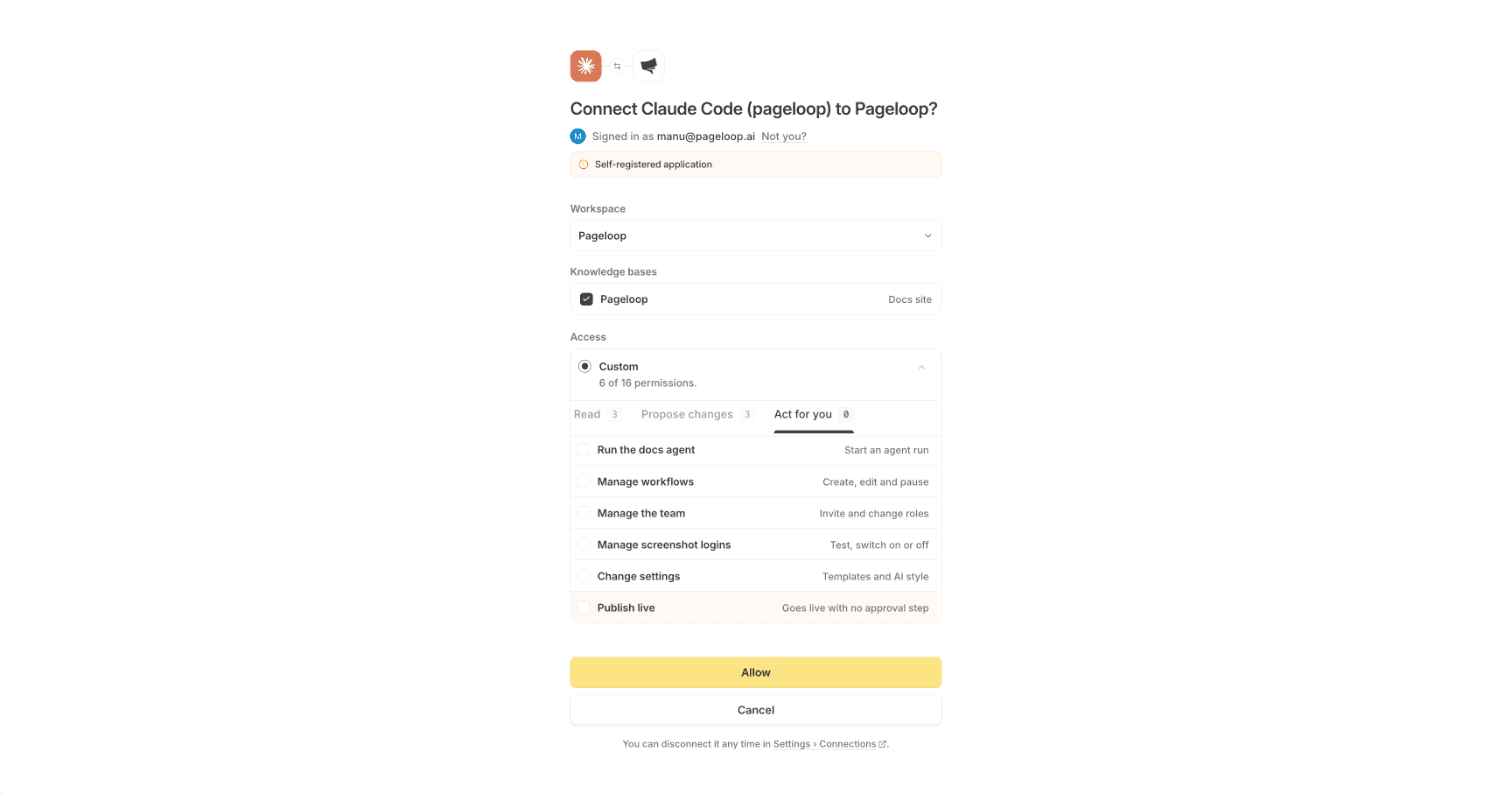
Selecting a management permission also selects its matching read permission. Clearing that read permission clears the management permission that needs it.
Managing workflows, the team, screenshot logins, templates, or AI style changes those workspace settings directly, rather than creating documentation drafts.
Screenshot-login permissions are for Admins in workspaces with Automated screenshots available in Settings. These permissions never reveal passwords and do not let the tool add, edit, or delete a login. See Set up automated screenshots.
What your role can grant
| Your role | What you can allow |
|---|---|
| Admin | All 16 permissions. |
| Editor | Everything except reading or managing screenshot logins and changing members' roles. Editors can invite Editors and Contributors, but not Admins. |
| Contributor | Read documentation, draft and review work assigned to you, and read workflows, the team, and workspace settings. Contributors cannot create change sets, submit or publish, run the docs agent, manage screenshot logins, or change workspace settings. |
Contributors see only active members' names in the team directory, not their emails or roles. See Manage members for workspace roles.
A connection's access is capped by your role and follows role changes automatically. Giving a tool Full access never lets it exceed what your role allows.
Change access later
To change the knowledge bases or permissions, disconnect the tool in Pageloop, then connect it again with the access you want to keep.