

Integrations
Connect your AI tool
Add Pageloop to your AI tool and choose its workspace, knowledge bases, and access.
Connect your AI tool
Connect your AI tool to Pageloop to work with your documentation from a conversation. Sign-in happens in your browser, where you choose what the tool can access.
Before you start
- Use this server address:
https://mcp.pageloop.ai/mcp. - Have a Pageloop-hosted knowledge base: a docs site. Connected help centers are not supported yet.
- Check your Pageloop role. Your role sets what you can allow the tool to do; see Choose what your AI tool can do.
Add Pageloop to your AI tool
In a chat app (web or desktop)
- Open Settings → Connectors → Add custom connector.
- Name the connector Pageloop and paste
https://mcp.pageloop.ai/mcpas the server address. - Select Add, then Connect.
On Team and Enterprise plans, an Owner adds the connector first under Organization settings → Connectors. Each member then connects the tool for their own account.
In a terminal or code editor
-
Run this command in your terminal:
claude mcp add --transport http pageloop https://mcp.pageloop.ai/mcp -
In Claude Code, enter
/mcp, choose pageloop, then select Authenticate to open browser sign-in.
Sign in and choose access
- Sign in to Pageloop if prompted. Check the account shown under Signed in as and the name of the tool requesting access.
- Choose the Workspace you want the tool to use.
- Under Knowledge bases, tick the docs sites the tool should access. Tick at least one.
- Under Access, choose what the tool may do. Propose changes is marked Recommended for drafting and reviewing without publishing live. Read Choose what your AI tool can do before granting broader access.
- Select Allow to approve the connection. For Read only, the button says Allow read access; for Full access, it says Allow full access.
- Return to your AI tool to finish connecting.
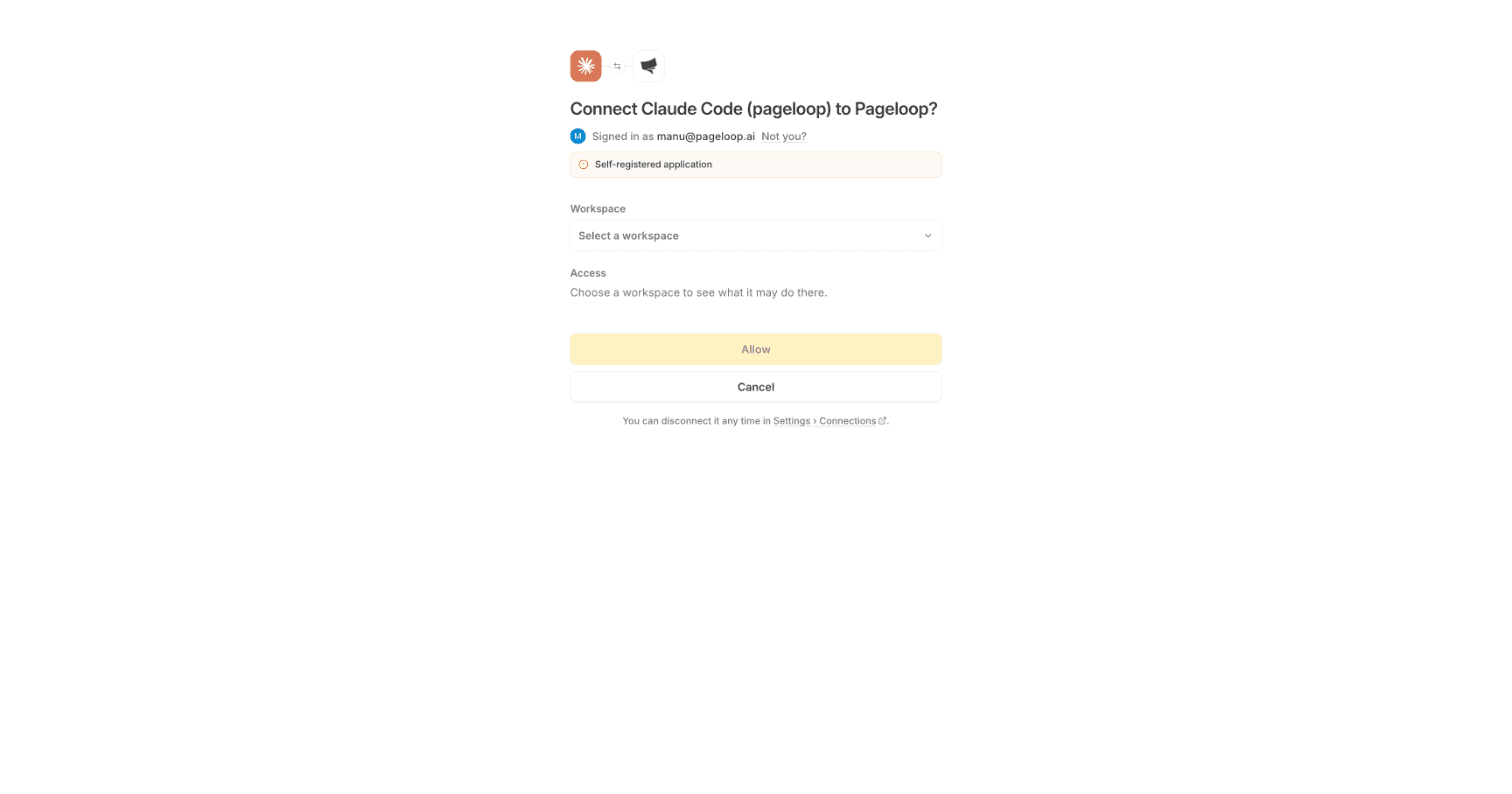
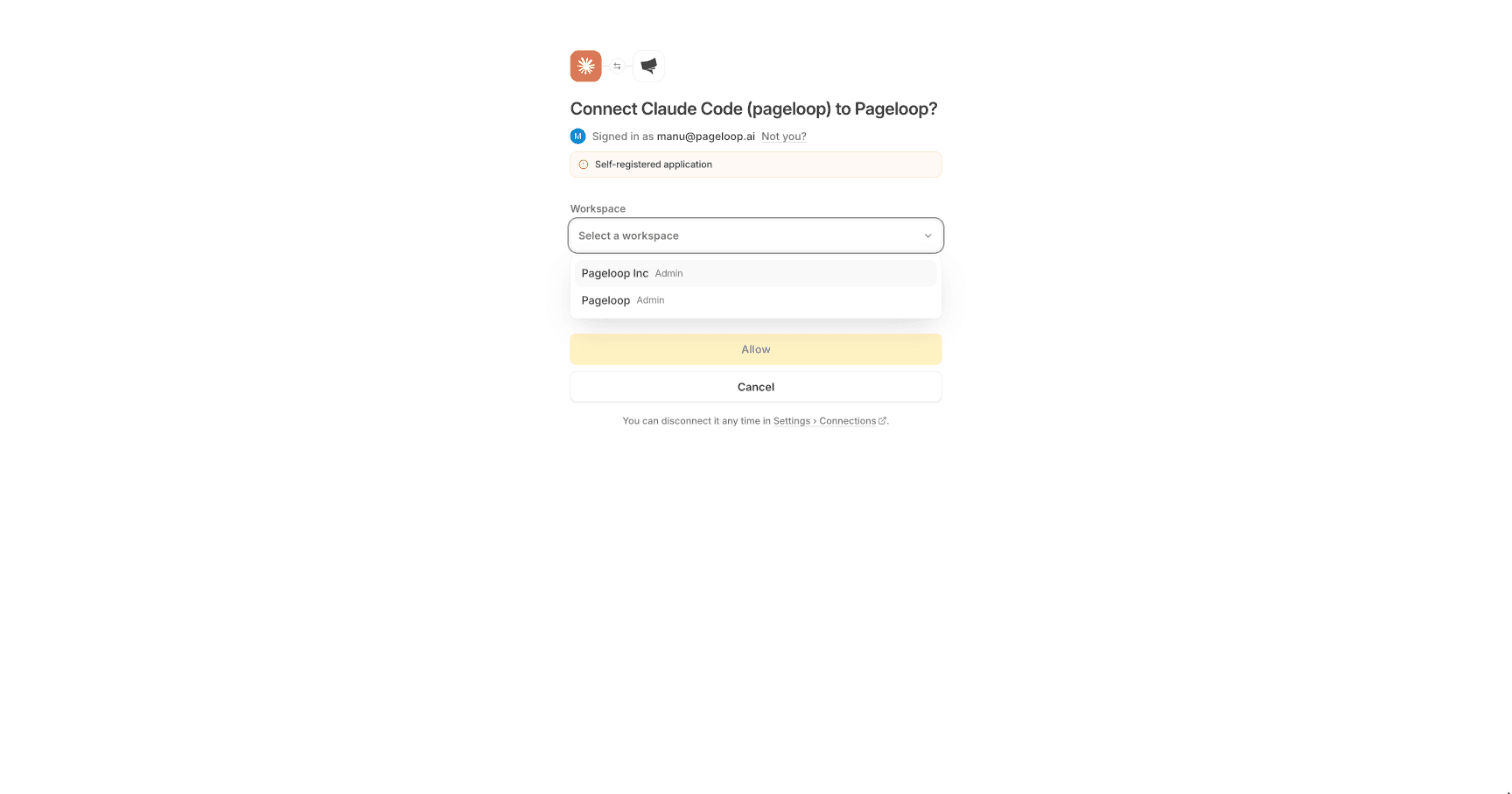
“Self-registered application”
Self-registered application means the tool registered itself with Pageloop. This is normal for MCP tools. Check that the name shown matches the tool you are connecting before you allow access. If you did not start the connection or the name is not what you expect, select Cancel instead.
Check that it works
Ask your tool: “List my documentation pages.” The result should show pages from the knowledge bases you selected.
Your tool's documentation edits stay in a change set for review unless you grant publishing access. You can review the connection or end its access in Manage and disconnect AI tools.
If sign-in fails or an expected capability is missing, see Pageloop MCP troubleshooting.