

Integrations
Manage and disconnect AI tools
Check what your connected AI tools can access and disconnect a tool in Pageloop.
Manage and disconnect AI tools
Use Settings → Connections to review the AI tools you have connected to a workspace and end a tool's access. Every role can review and disconnect its own connections.
Open Connections
Open Settings → Connections directly, or follow the Settings › Connections link at the bottom of the sign-in screen when connecting a tool.
Connections is not listed in the Settings menu. Use the link or the address above rather than looking for a sidebar entry. Check that you are in the workspace whose connections you want to manage.
Check a tool's access
Each connection card shows:
- The tool's name.
- The date you connected it.
- The knowledge bases it can access.
- What it may do in each knowledge base.
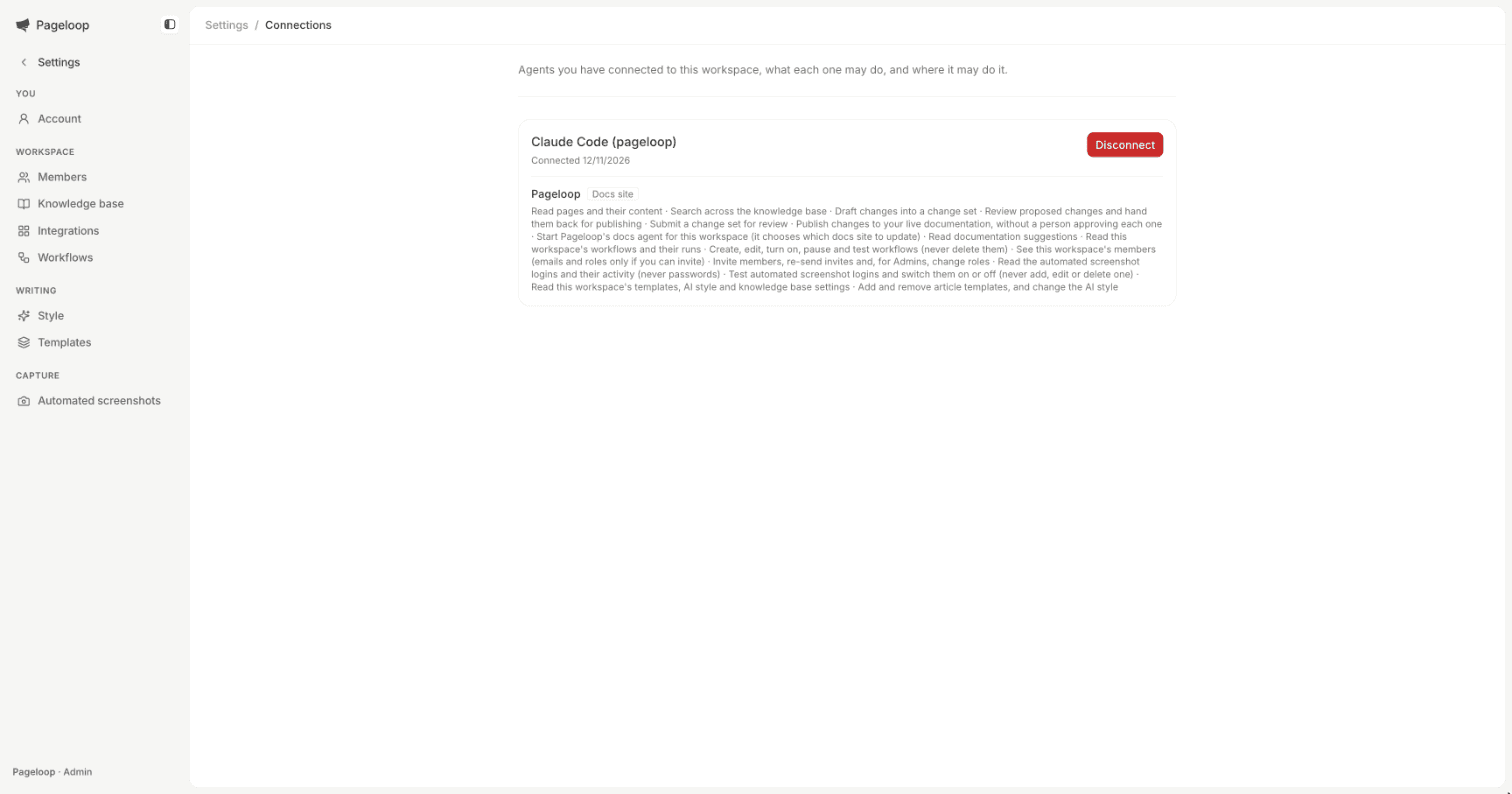
Use the permission descriptions to check whether a tool may only read, propose changes, or publish live. Your Pageloop role remains the limit on what the connection can do.
Disconnect a tool
- Find the tool's card in Connections.
- Select Disconnect.
- Select Confirm disconnect.
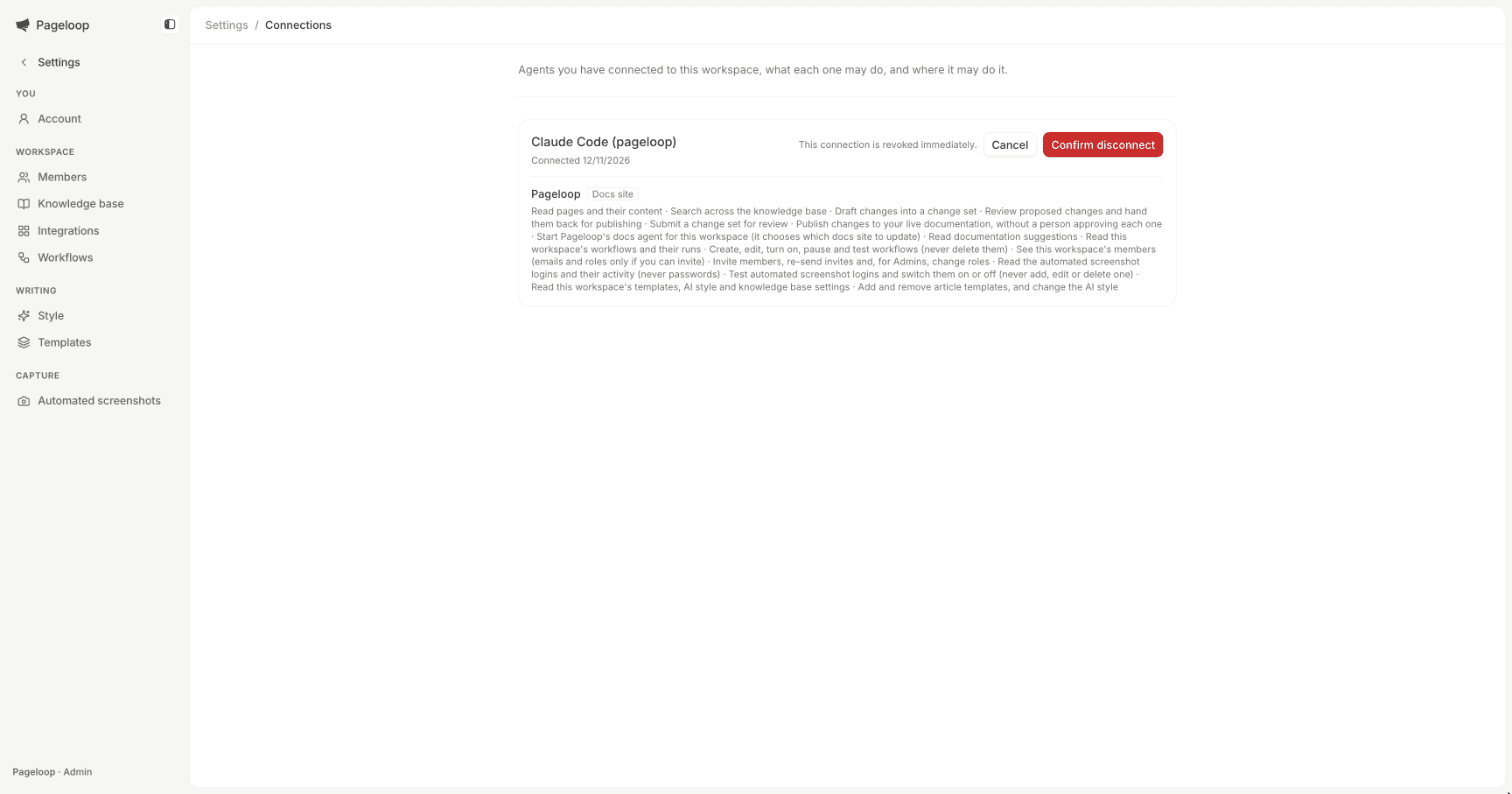
Confirming revokes the connection immediately. The tool can no longer use that connection to access Pageloop.
Clearing sign-in inside the AI tool does not remove its connection in Pageloop. Disconnect the tool on the Connections page to revoke its access.
Change access or reconnect
To change a tool's knowledge bases or permissions, disconnect it in Pageloop, then connect the tool again. Choose the knowledge bases and access level you want it to have.